
Audio Tab
Adjust loudness for your video. The actual processing method is picked automatically based on your source material.
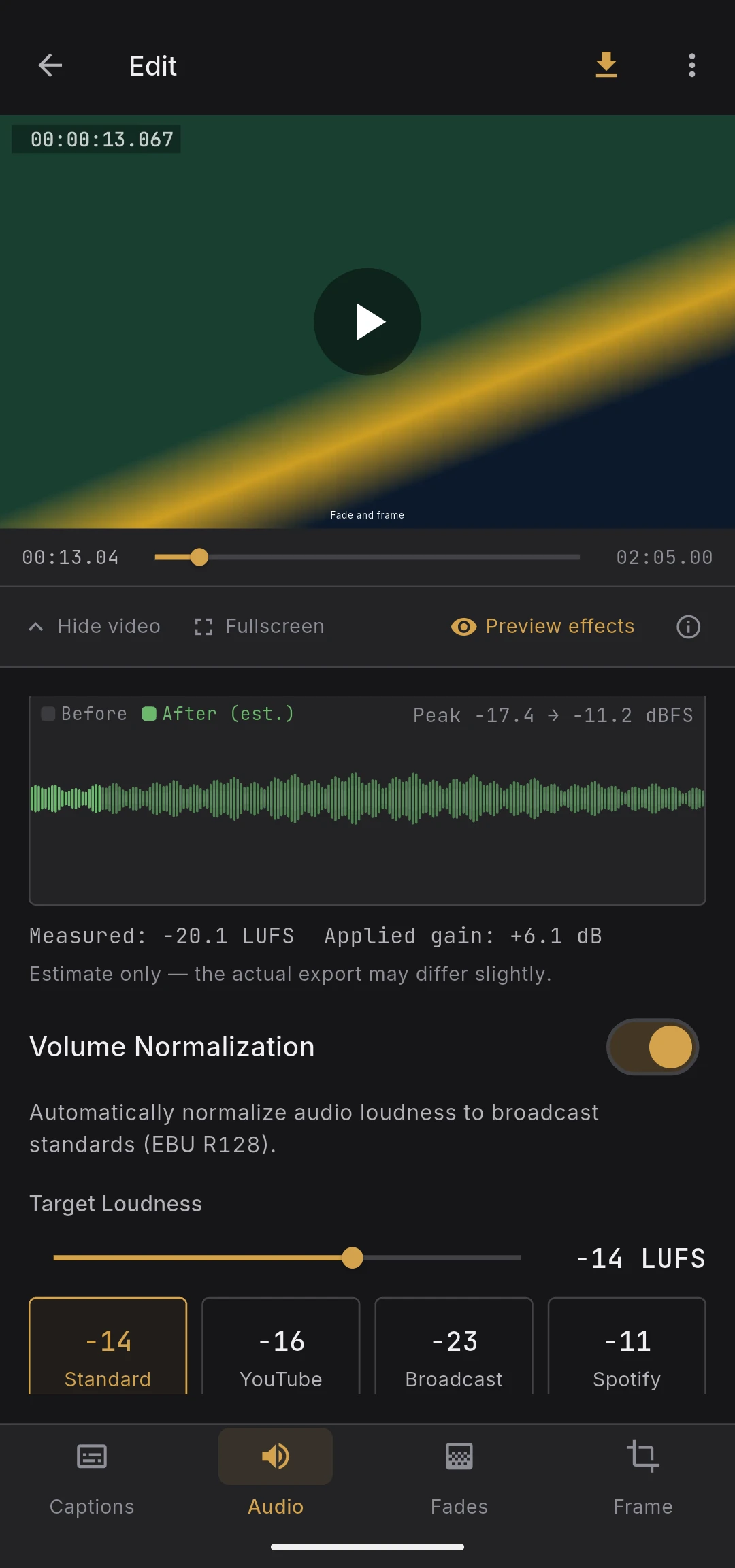
Waveform display
The waveform at the top of the tab shows the audio of your source video. When normalization is enabled, a before / after comparison is shown so you can visually check how much the signal will be amplified.
- Playback position is highlighted in real time
- The waveform uses absolute amplitude (full-scale reference), not a relative auto-scale, so loud and quiet sections stay visually comparable
- Clipping regions are marked so you can spot potential overload before exporting
- The after waveform is an estimate — the final output goes through the pipeline below and can differ slightly
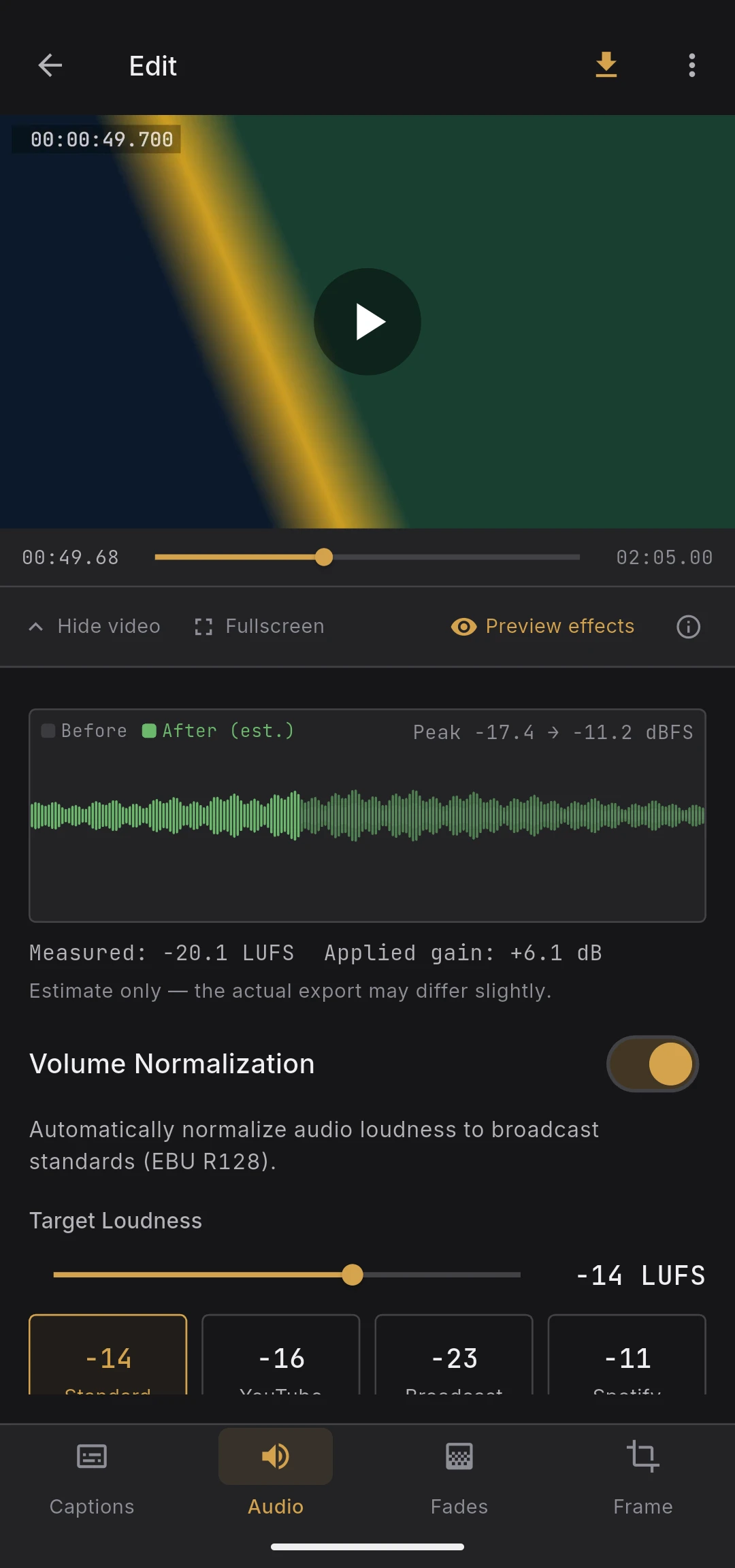
Volume normalization
A single switch enables or disables loudness normalization. When off, audio passes through unchanged.
Target loudness
Choose the target integrated loudness (LUFS) using:
- Slider — from −30 to −5 LUFS in 1 LUFS steps
- Presets — common targets for different distribution platforms (standard, YouTube, broadcast, Spotify)
Lower negative values (e.g. −23 LUFS) are quieter and closer to EBU R128 broadcast standards. Less-negative values (e.g. −14 LUFS) are louder and match streaming platform levels.
How normalization is applied
The measurement happens in two passes. What runs in the second pass depends on your source:
- Linear mode — when the source has enough headroom, a flat gain is applied across the entire video. Dynamics are perfectly preserved
- Gain + limiter fallback — when the flat gain would push peaks past the true-peak ceiling, BareVid switches to a different approach that still applies a single gain and adds a safety limiter, instead of the built-in dynamic mode
The second mode exists because the built-in dynamic mode can cause audible gain jumps on material with wide dynamics (solo piano, ambient recordings). BareVid prefers faithful audio even if the target LUFS is not fully reached.
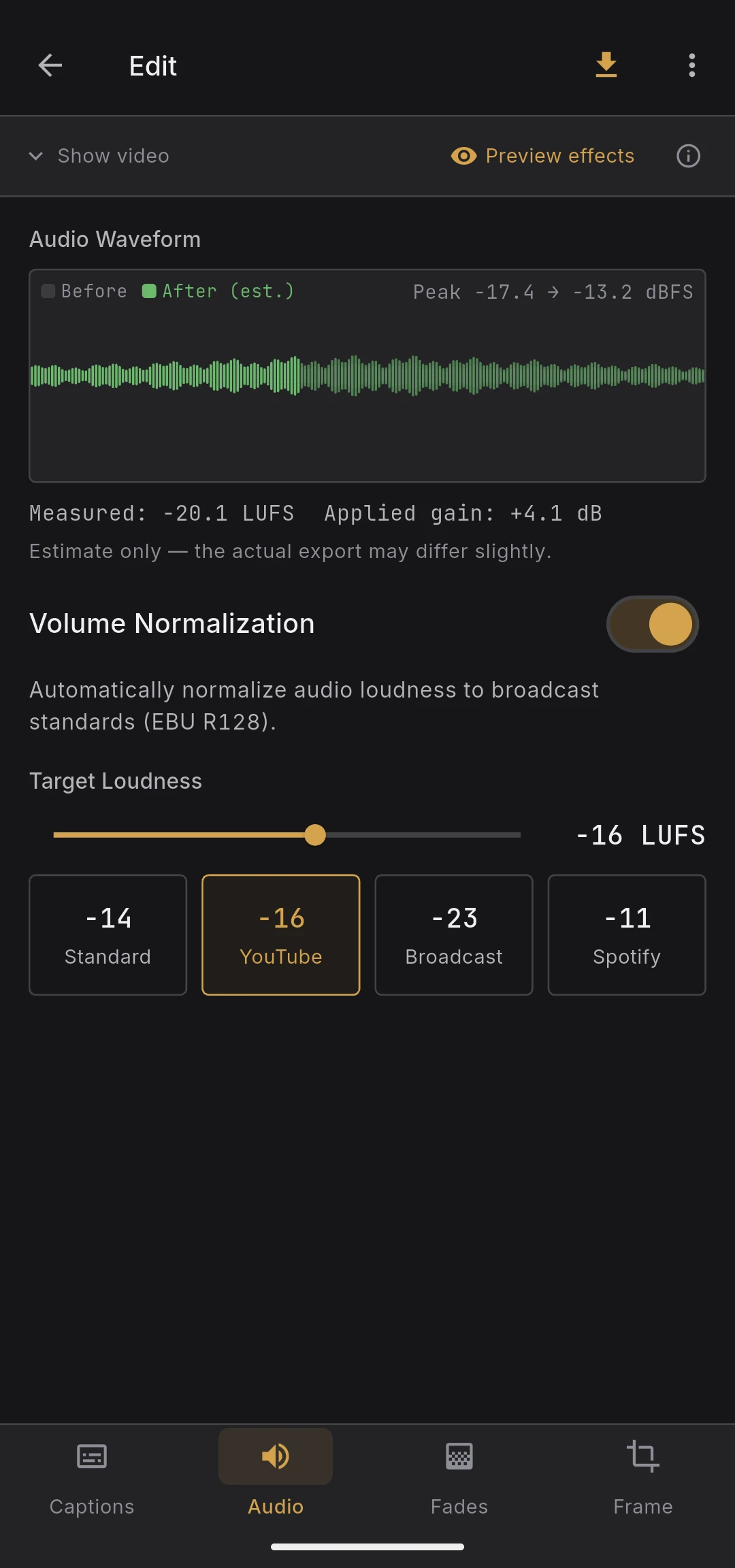
You do not pick the mode. It is chosen automatically from the measurement. The selected mode and applied gain are shown under the waveform while you edit, and in the export diagnostics after rendering.
Notes
- First-pass measurement runs the first time you enable normalization on a given source and is cached afterwards
- The waveform preview shows the gain that will actually be applied, not just the target LUFS offset