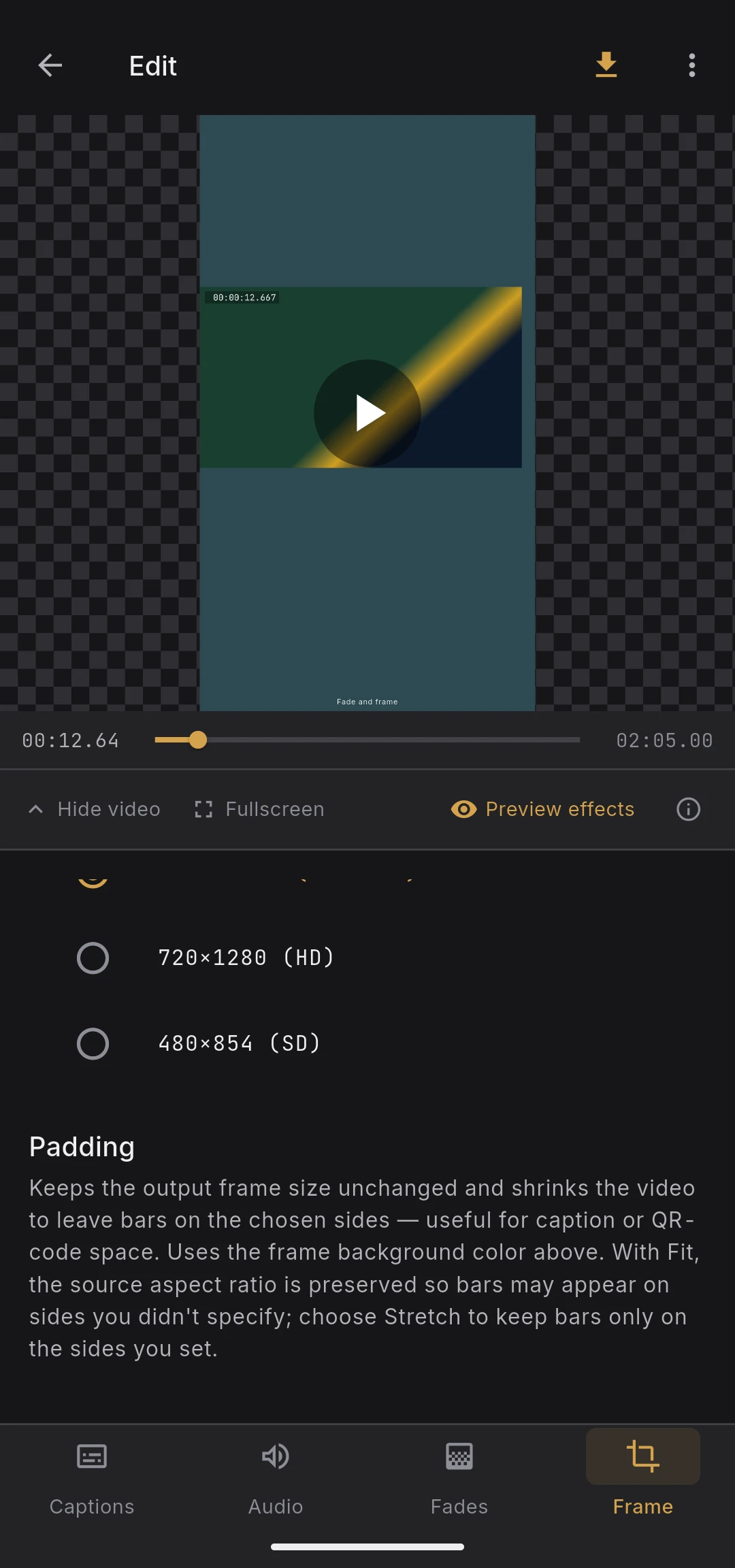
Frame Tab
Shape the output frame. This tab combines aspect ratio conversion with per-side padding so you can repurpose landscape footage for vertical platforms, or carve out room for captions, QR codes, or decorative borders.
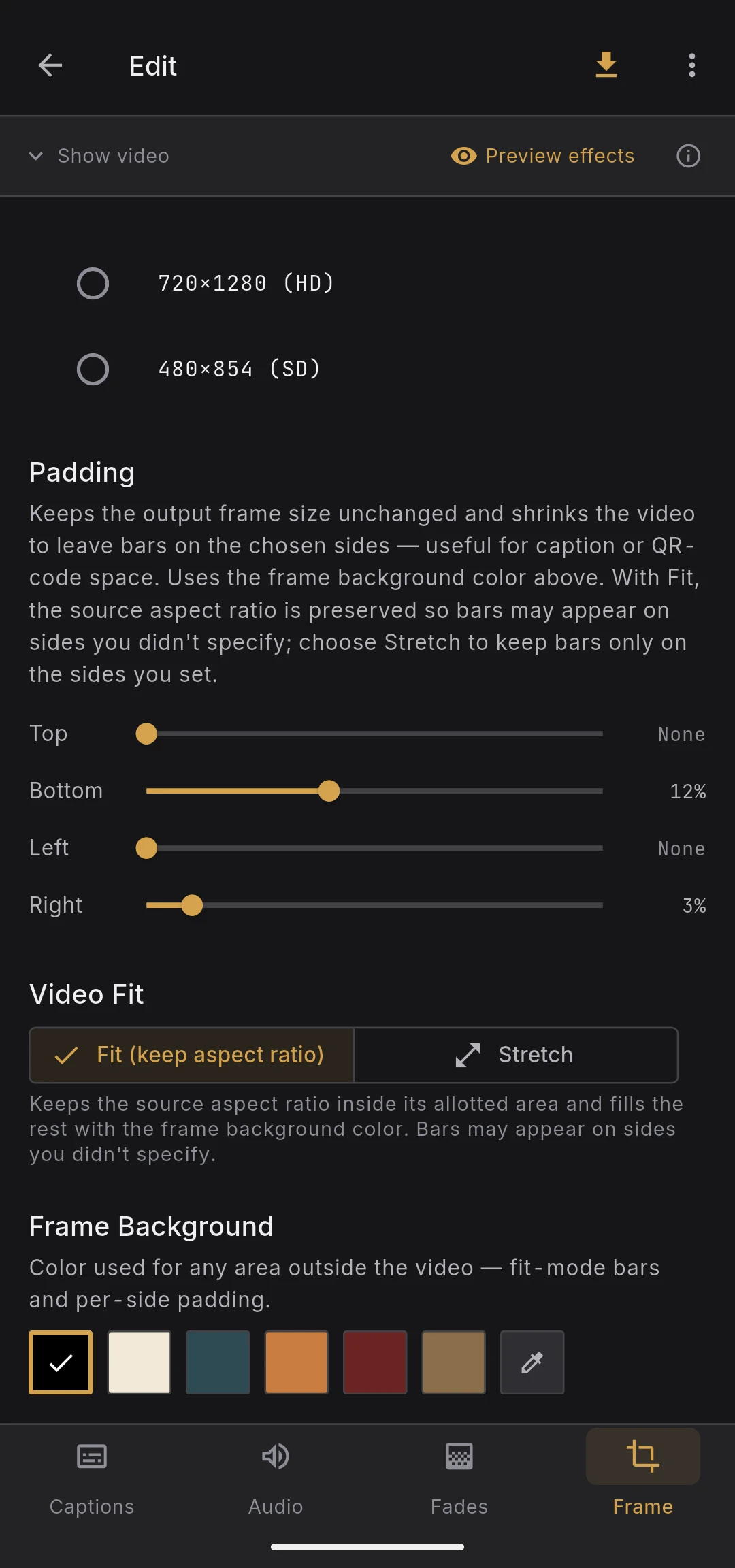
Aspect ratio conversion
Mode
Pick one of three top-level modes.
- Keep original — no aspect ratio change. Resolution and related controls are disabled
- Convert to short (9:16) — vertical output for Shorts, Reels, TikTok
- Convert to landscape (16:9) — horizontal output for YouTube and general playback
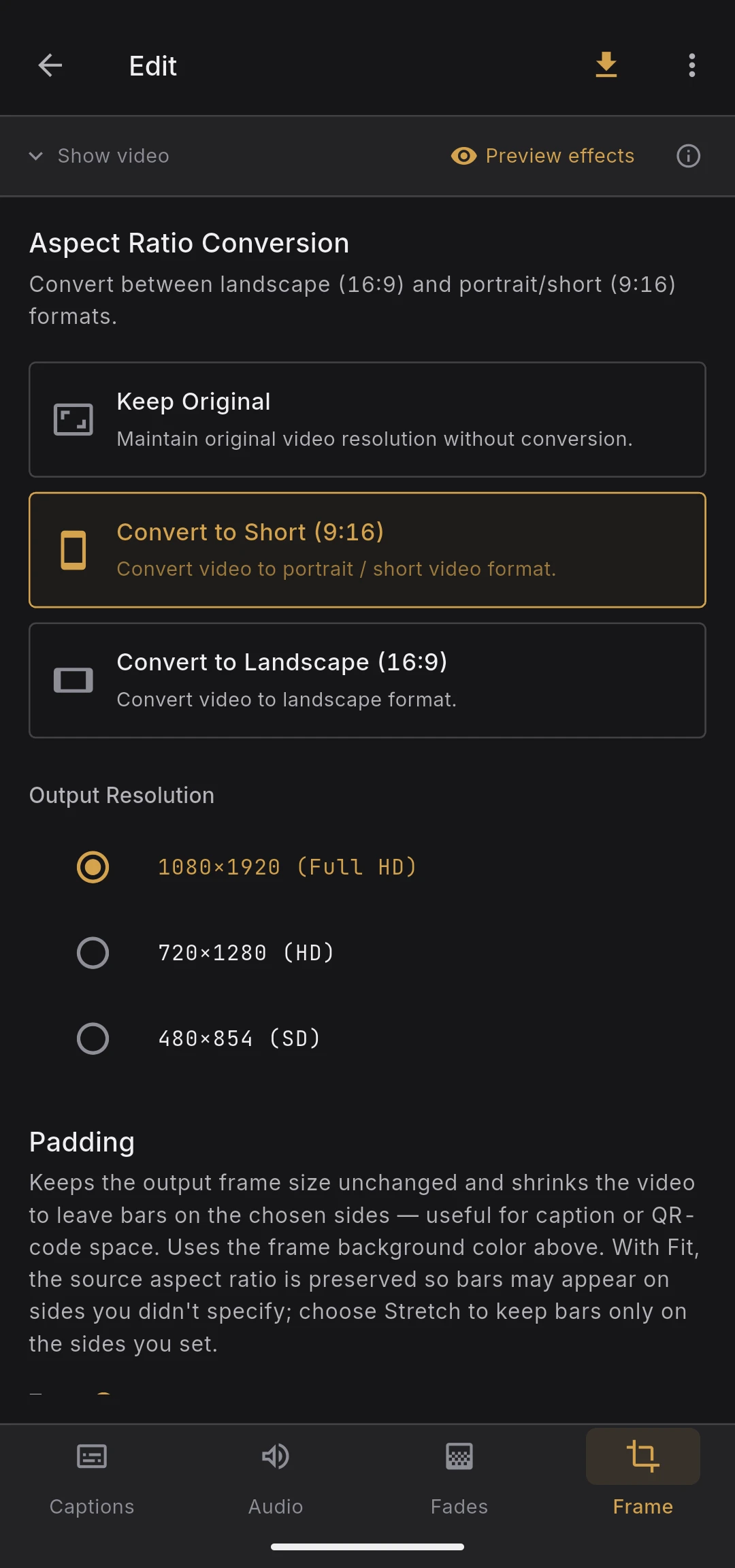
Fill mode
How the source video fits into the new frame.
- Fit — keep the original proportions and fill the empty space with the frame background color. No content is stretched or cropped
- Stretch — scale the source to fill the new frame. Content is distorted when the source and target aspect ratios differ
Fit is the safe default for most material. Stretch is only sensible when the source is already close to the target ratio.
Output resolution
Once you pick a conversion mode, you can choose the exact pixel dimensions.
- Short presets — common vertical resolutions (1080×1920 and alternatives)
- Landscape presets — common horizontal resolutions (1920×1080 and alternatives)
When Keep original is selected this section shows "No conversion" since the source resolution is preserved.
Padding
Keeps the output frame size unchanged and shrinks the video into a sub-rectangle, leaving bars on the chosen sides. Padding works independently of aspect ratio conversion.
Typical use cases:
- A bottom bar for captions, so subtitles sit in the bar instead of overlapping the footage
- A right bar for a QR code
- Borders on all sides for a more deliberate social-media look
Per-side sliders
Four sliders — Top / Bottom / Left / Right — each set padding from 0% to 30% in 1% steps. Values are fractions of the full output frame. For example, on a 1080×1920 frame, "Bottom 10%" produces a 192 px bar at the bottom and the video shrinks into the 1728 px region above it.
The bar color is set by Frame background below (shared with the fit-mode bars).
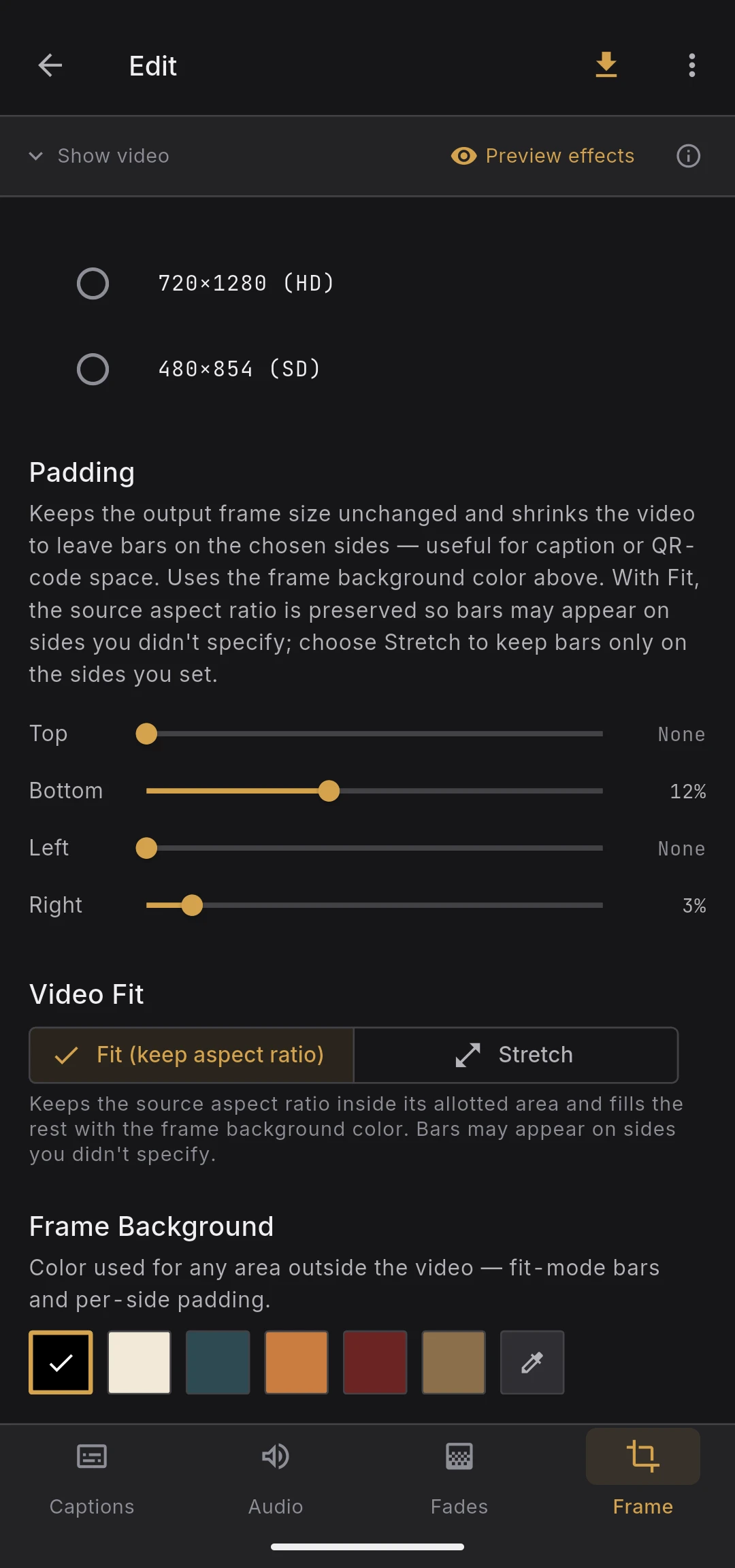
Combination with Fit / Stretch
The fill mode controls how the video fills the inner sub-rectangle.
- Fit — keep the source aspect ratio inside the sub-rectangle; any leftover space is filled with the frame background color
- Stretch — fill the sub-rectangle exactly. Content is distorted if its aspect ratio differs from the source
Padding is also available in Keep original mode — the output frame stays at the source resolution and bars appear on the chosen sides.
Frame background
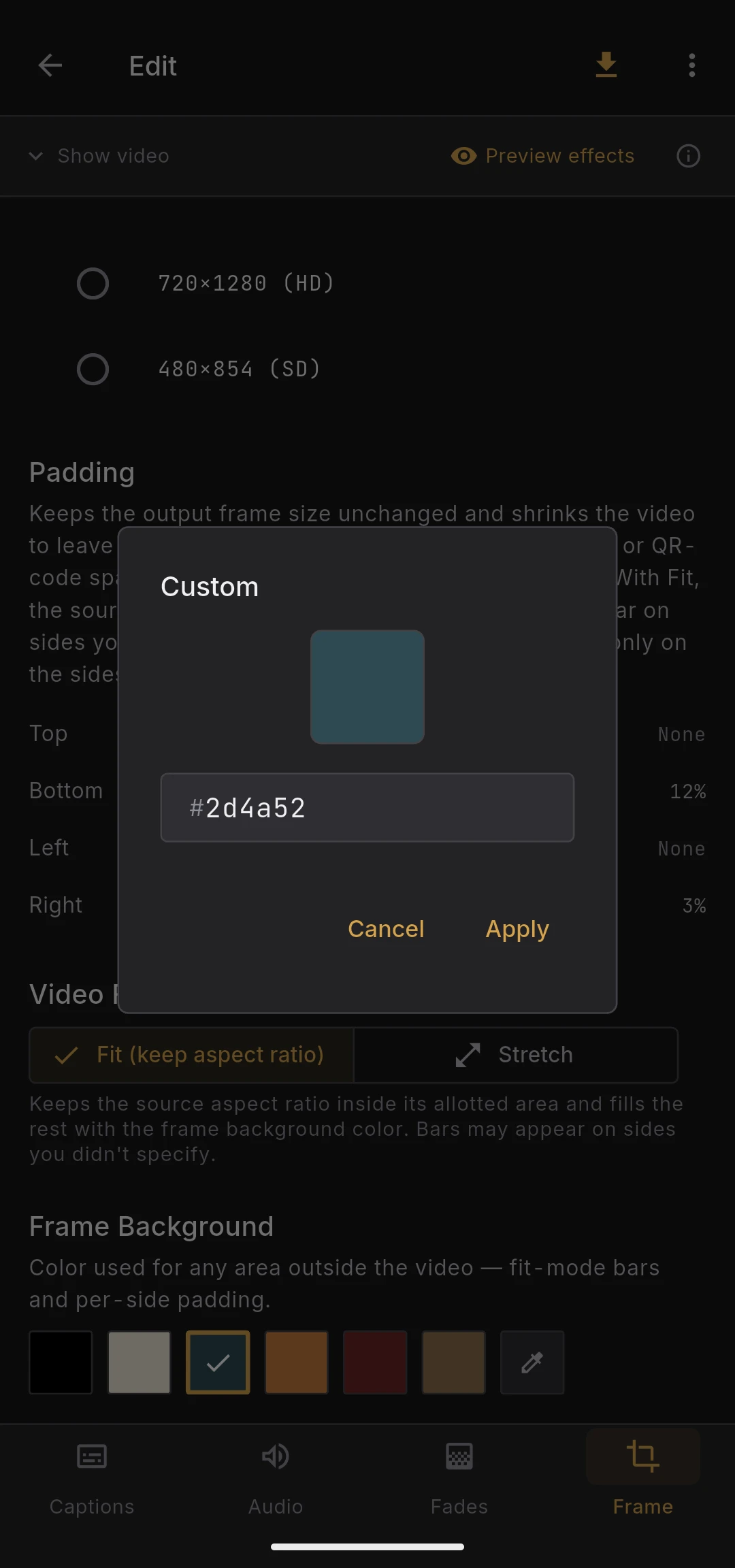
A single color used for any area outside the video — both the bars produced by Fit mode and the Padding bars you set yourself. Pick it from the swatch picker; black is the common choice.
Because one color covers everything, Fit and Padding combine into a seamless frame. There is no way to use a different color for fit bars and padding bars.
The control is enabled whenever Fit mode or any Padding is active. It is disabled when neither effect uses it (Stretch with no padding, or Keep original with no padding).
Live preview
The video preview reflects both aspect ratio and padding in real time. Content that falls outside the output frame is rendered on a checkerboard background so real bars are easy to distinguish from UI space.