
Captions Tab
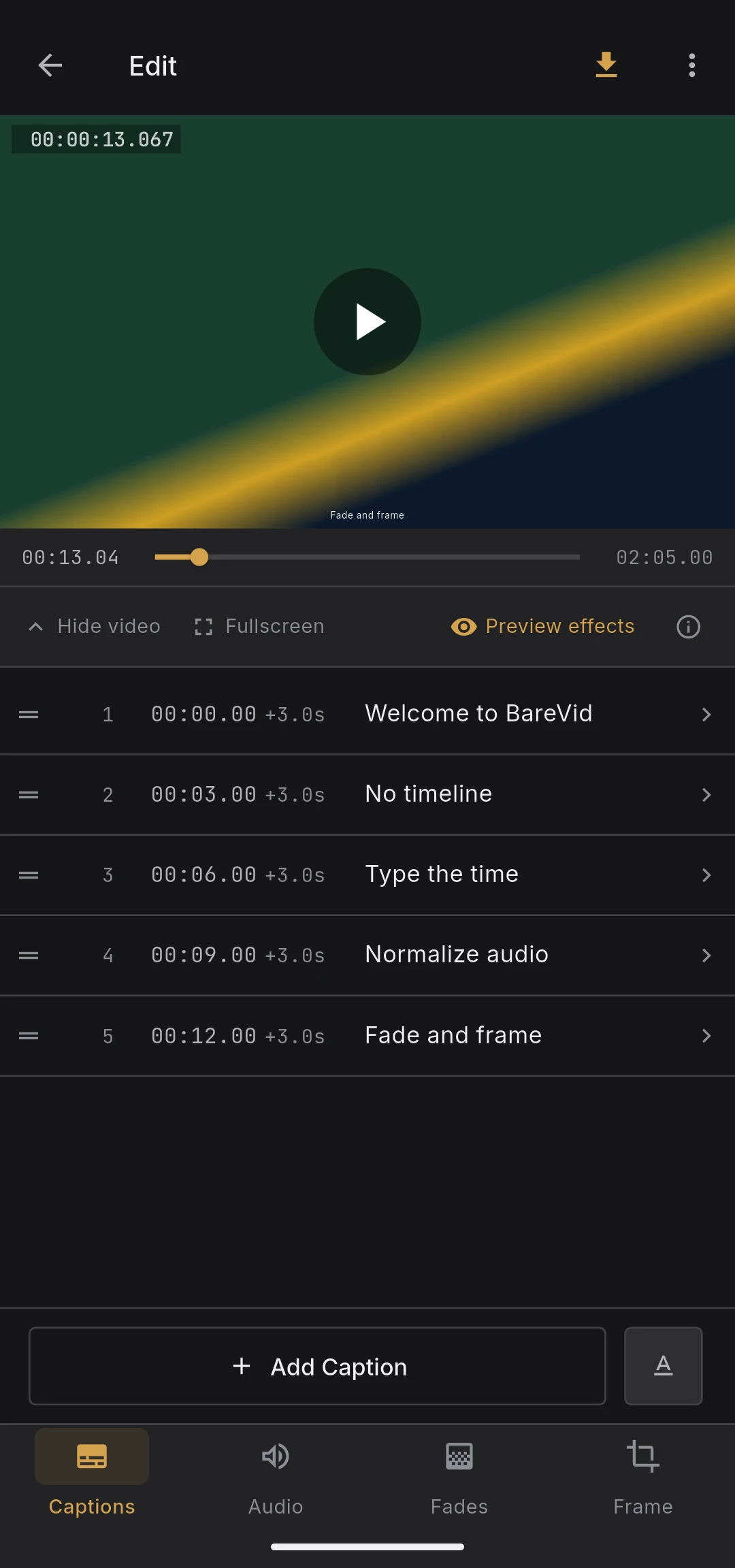
Add captions with a table-based form, without dragging anything on a timeline.
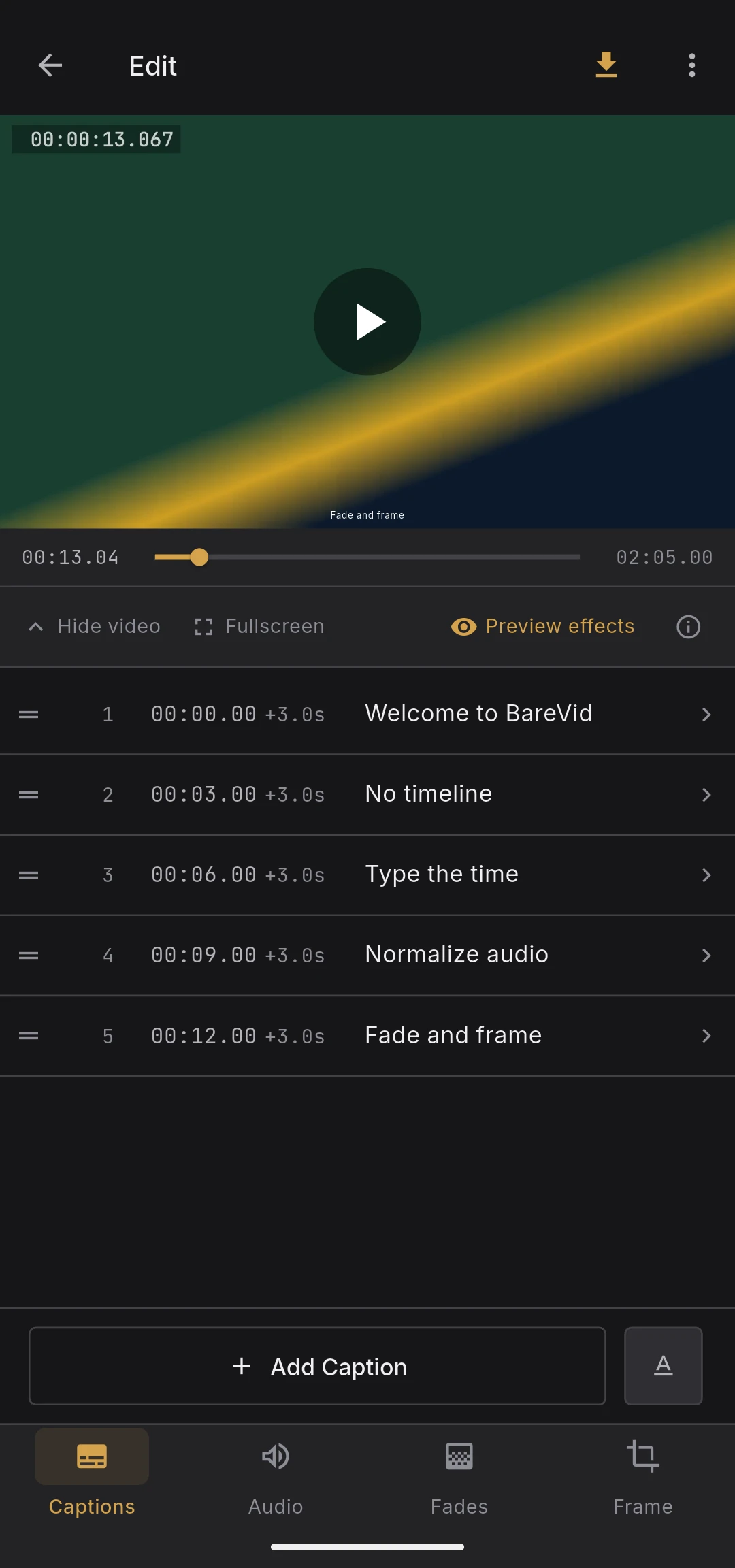
Caption list
The main area is a list of caption rows.
- Add caption — tap the "Add caption" button at the bottom. A new row is appended, starting from the end time of the previous caption
- Edit caption — tap any row to open the edit sheet (text, start time, duration, per-caption style override)
- Delete caption — swipe the row from right to left, or tap delete inside the edit sheet. Both paths show a confirmation dialog
- Reorder captions — long-press the drag handle on a row to move it in the list
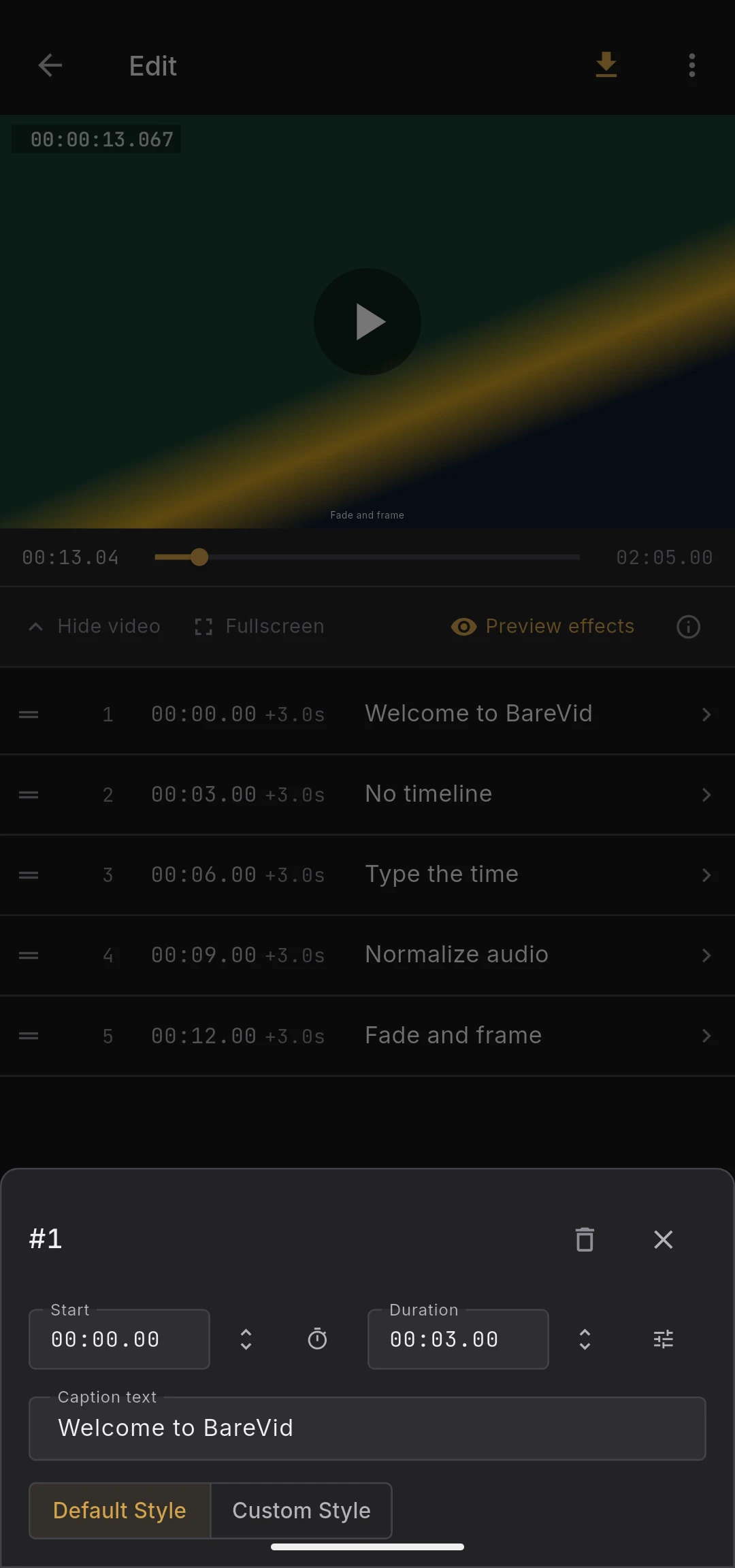
Time input
Start time and duration use a unified input pattern:
- Text field — for precise numeric entry
- Loop roll picker (CupertinoPicker) — for quick scroll-based adjustment
- Helper buttons — "Use current playback position" and common duration presets
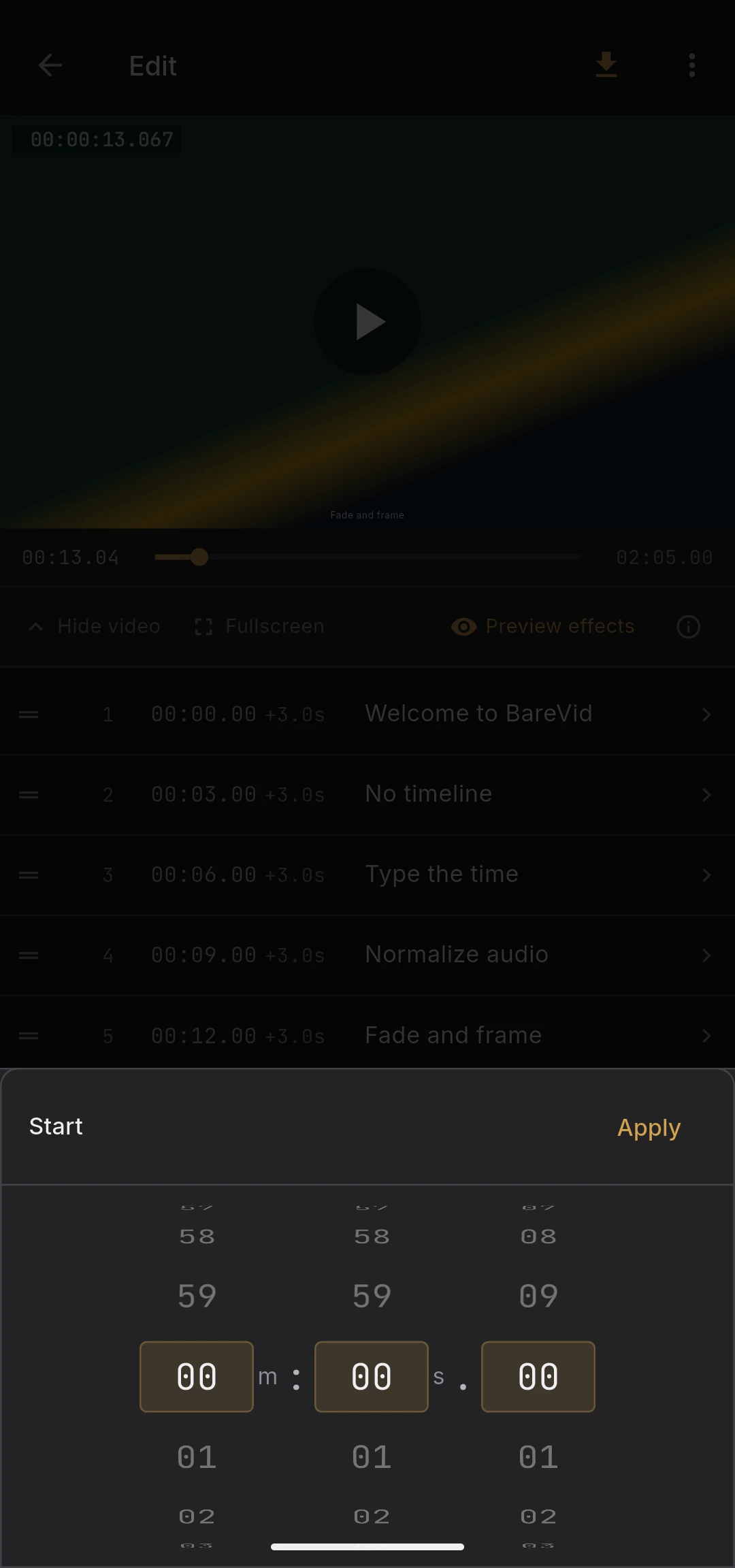
Default caption style
The style button next to "Add caption" opens the default style sheet, which applies to every caption that does not have its own override.
Adjustable properties:
- Font family, font size, bold / italic
- Text color, outline color and width, background color
- Horizontal alignment and vertical anchor position
The reset icon restores the factory default style.
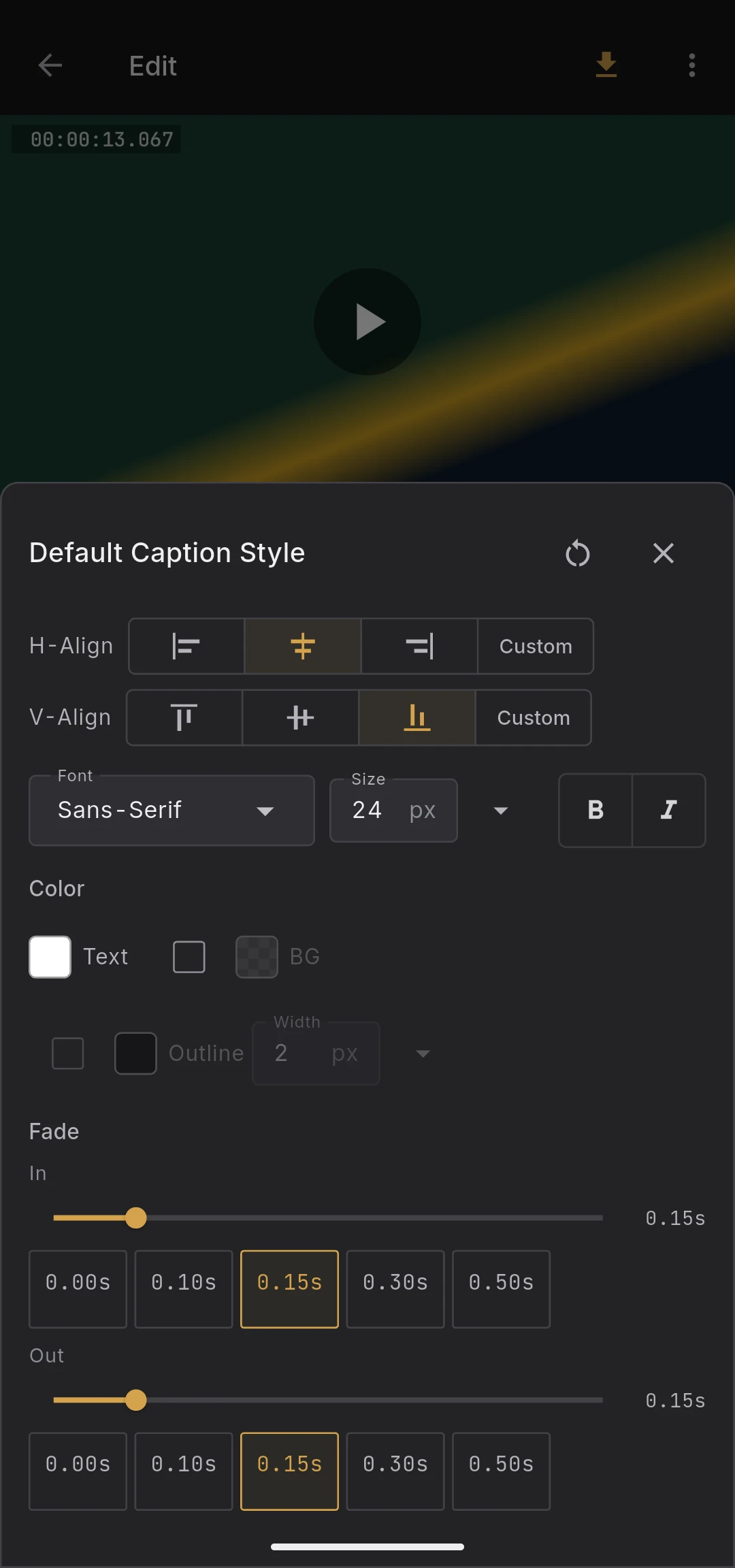
Per-caption style override
Each caption can opt out of the default style. In the edit sheet, enable the per-caption style toggle to expose a full style editor for that single caption. Disable the toggle to fall back to the default style.
Live preview
The video preview above the tab shows captions in real time using the Flutter layer — FFmpeg is not involved until you export. Captions appear and disappear based on playback position. Use the preview toggle in the video header to hide effects and see the raw source.
How captions are rendered at export
Captions are burned into the output video using ASS subtitles with libass. The export pipeline handles font embedding, outlines, and positioning exactly as shown in the preview.