
Fades Tab
Add a fade in at the start of your video and a fade out at the end. Both audio and video fade together.
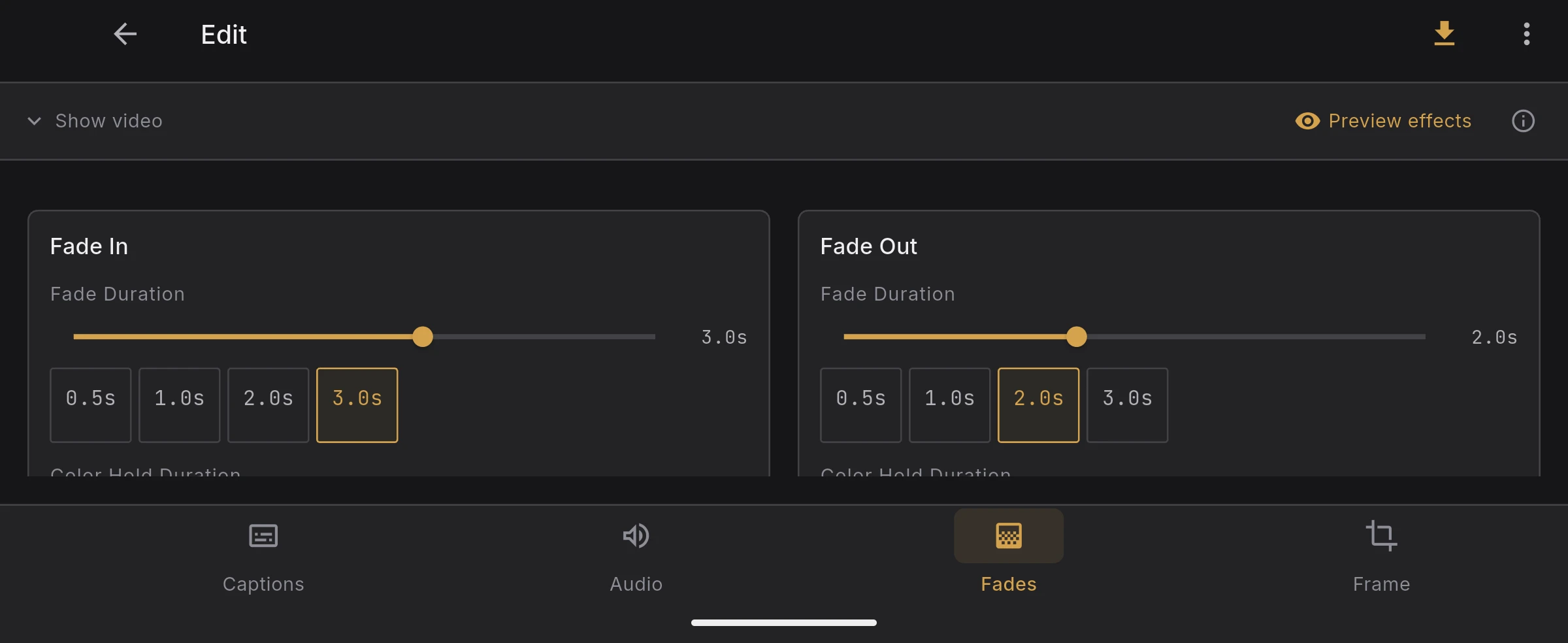
Two panels
The tab has a Fade In panel and a Fade Out panel. On wider screens they appear side by side; on narrow screens they stack vertically.
Each panel has the same three controls.
Fade duration
The length of the cross-fade between the solid color and the video.
- Slider from 0 s to 5 s in 0.1 s steps
- Quick presets: 0.5 s, 1.0 s, 2.0 s, 3.0 s
Setting the duration to 0 disables the fade on that side.
Solid color duration
The length of the fully opaque solid-color segment before the fade in (or after the fade out). Set to 0 to start the fade immediately at the first (or last) frame.
The total length added to the video on each side is solid color duration + fade duration.
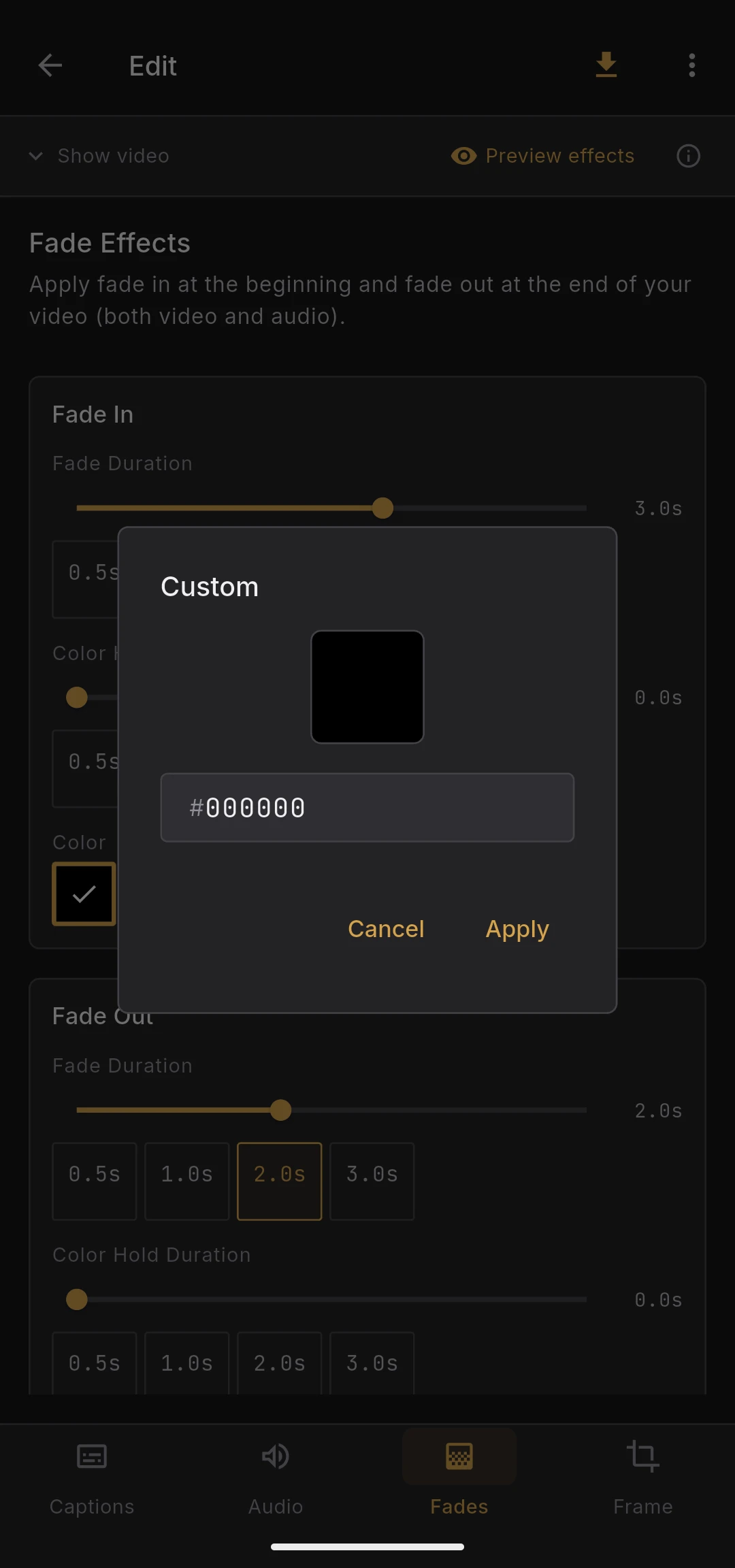
Fade color
The color used for the fade. Typical choice is black, but any color is available from the swatch picker. Fade In and Fade Out each have their own independent color.
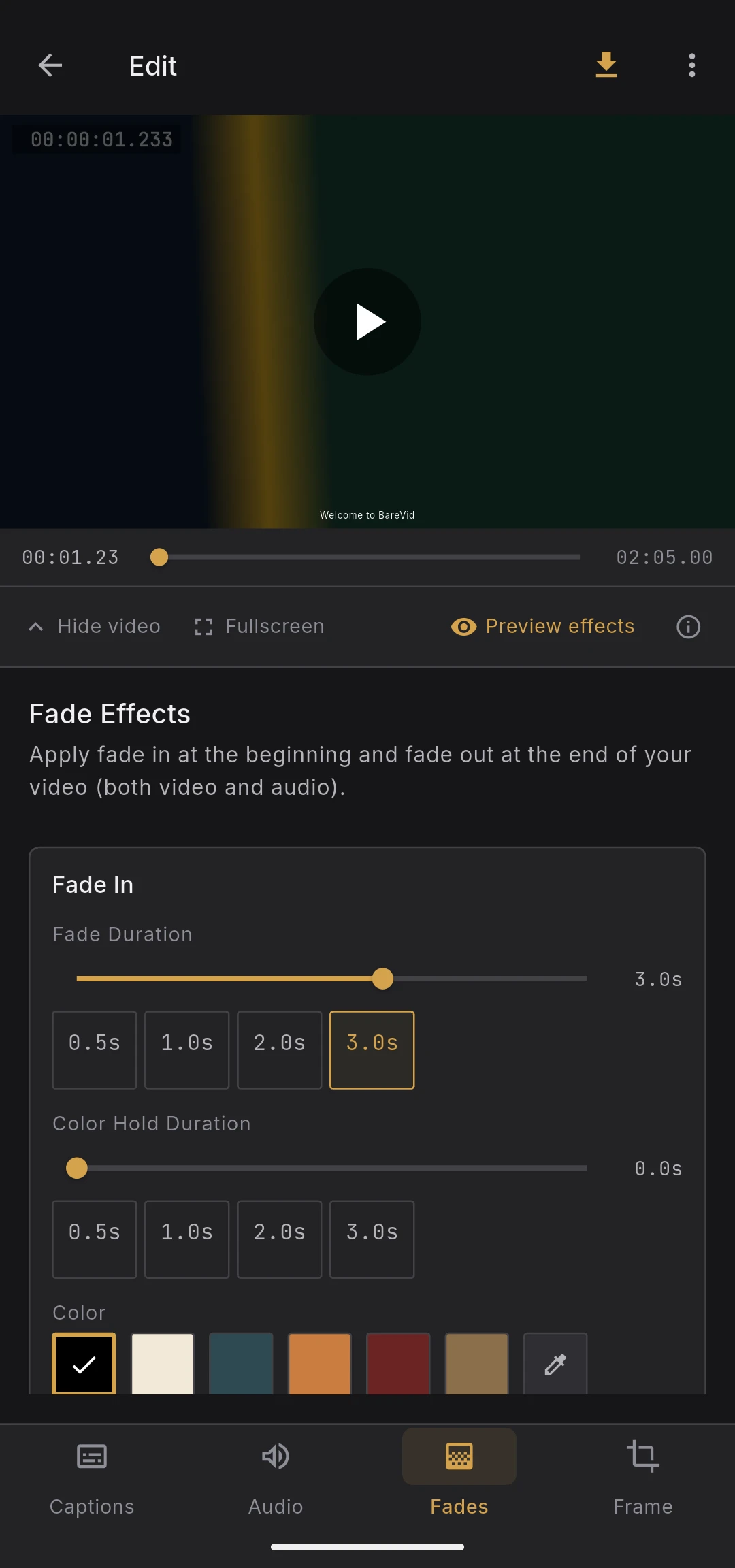
Live preview
Fades are shown in real time in the video preview above the tab, rendered by the Flutter layer. The preview reflects both the solid-color pad and the opacity ramp exactly as they will be encoded. Toggle the preview off in the video header if you want to see the raw source.
How fades are applied at export
- Video channel: FFmpeg
fadefilter for the ramp, with the solid color extended as an edge - Audio channel: FFmpeg
afadefilter matched to the video fade so the audio level ramps in sync